The capability to record screen content with flawless smoothness, accompanied by crystal-clear sound, has become a shared capability among contemporary professionals, educators, and software developers, as well as creators of content and players of computer games. The selection of the right Mac screen and audio recording software is an essential matter when working within the Apple ecosystem, where macOS requires special optimization that is further enhanced by powerful hardware such as Apple Silicon and native architectures like Metal.
It is a detailed reference that breaks down the Mac screen recording and audio capture tools. We go into more detail, reviewing software by its codec efficiency, reliability in capturing system audio, incorporation of built-in or advanced editing suites, and pricing models, in order to help you find the best possible tool for your particular workflow.
Why Mac Users Need Specific Software
The macOS platform offers special opportunities and issues in relation to video production:
- Apple Silicon Optimization: Modern apps are now tuned to run on Apple Silicon (M-series devices), meaning that they can encode (and in particular 2-minute) HEVC/H.265-encoded video remarkably quickly and require fewer resources to run in high-resolution recordings.
- QuickTime weaknesses: QuickTime Player, though it is free and good where fast and simple capturing is required, it does not come with advanced features such as multi-track recording, cursor effects, and native system audio recording can work well with the older versions of macOS.
- Capture Challenge System audio: Because of the Apple security architecture, recording internal system audio (e.g. a web browser audio, Spotify audio, or application audio) and the screen has historically involved installing third-party OS extensions or virtual audio drivers (such as BlackHole). Subsequent premium applications, such as ScreenFlow, however, provide built-in audio recording of the system without the requirement of further drivers on later macOS versions.
Core Criteria for Selecting Recording Software
The selection of the appropriate tool will be determined by your overall intention, either just to communicate easily or to be a professional producer.
1. Video Quality & Codec Support
You should be able to shoot 1080p or 4K to have a clear image. Even more to the point, your destination should have the right codec in the software:
- Apple ProRes: It is a 10-bit encoder and decoder utilized by intense post-production that requires color correction, effects, layers, etc. ProRes files are massive and render more quickly and better hold more color data.
- H.264 (or H.265): It is an 8-bit codec that is used as a standard in final video distribution (YouTube, Netflix, Vimeo). H.264 has a good compression ratio, which translates to small file sizes that are network-friendly. The newer and more efficient version is HEVC (H.265), which is able to offer the same quality at even smaller sizes (although it would need the hardware support of HEVC encoding on the Mac).
2. Audio Reliability and Control
The software should have numerous input capabilities, and you are able to record at the same time an external microphone to be able to narrate clearly, and the system audio to record application sounds. Professional equipment enables every audio source (mic, system, application) be recorded separately to be mixed later in the post-production phase.
3. Integrated Editing Capabilities
To use professional tutorials and training, a timeline built-in solution is necessary. Such capabilities should be used for multi-track editing, smoothing/effecting of cursors, the removal of audio noise and the possibility to add callouts and transitions.
4. User Workflow and Sharing
To have teamwork and fast asynchronous communication speed, and sharing are valued. The cloud hosting and sharing of links is of utmost priority in tools such as Loom, which minimizes the management of files on the local hard disk.
List of Top Mac Screen and Audio Recording Software
To study the Mac screen recording market, we divide the tools into three broad categories: Built-In/Open Source, Professional All-in-One, and Quick Communication/Specialized.
Category 1: Built-In & Open Source Solutions
They are either native steps of macOS or free and open-source to meet simple recording and elaborate customization with no constraints on budget.
1. QuickTime Player (Built-in)
Website: In-built
Price: None
The default and pre-installed recording application on every Mac is QuickTime Player. It is appreciated due to zero-cost accessibility and a simple interface, so it would be suitable for simple tutorials and walkthroughs in the company. Most of its screen recording functionality has been added to signify macOS Mojave (10.14) to the Screenshot App (Shift + Command + 5).
The tool lets you record all of the screen or a specific part of the screen, and you can always pick a microphone to use for voiceover. It, however, does not have high editing capabilities, webcam overlay options, and its system audio capture needs third-party drivers or software routing capabilities on older systems.
2. macOS Screenshot Toolbar (Built-in)
Website: In-built
Price: None
After macOS Mojave, the most widespread option of initiating a recording on a Mac is the Screenshot Toolbar (invoked with the help of Shift + Command + 5). It offers the ability to capture the whole screen, a window of choice or an area of choice. Most importantly, it will make it possible to select the output format (SDR H.264 or HDR HEVC, depending on the Macs supported by this feature and running macOS Tahoe 26 or higher) and a choice of a microphone prior to commencing the recording.
As a reliable mac screen and audio recording software, it is the most expedited way of capturing screens quickly and reliably and placing files in a position of automatic statements on the desk.
3. OBS Studio (Open-Source Powerhouse)
Website: https://obsproject.com/download
Price: Free
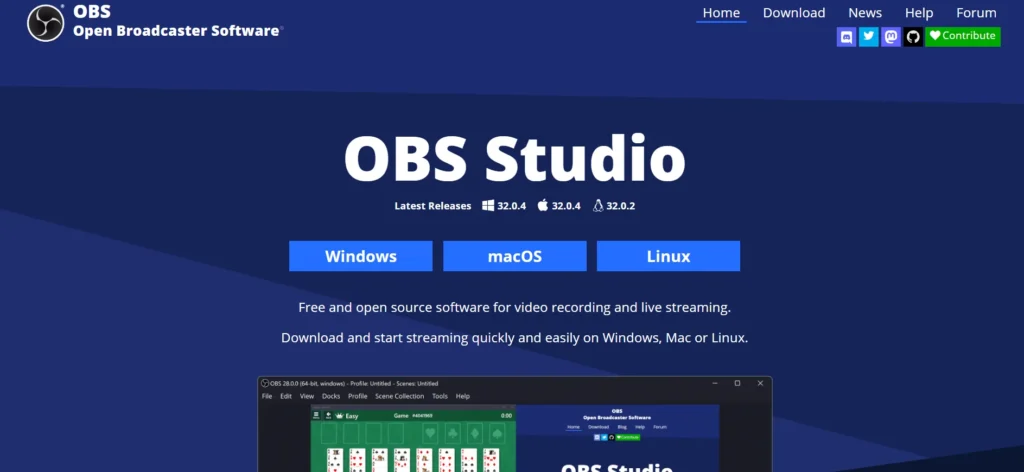
OBS Studio (Open Broadcaster Software) is entirely open-source, which should be the ultimate option when the alternatives to this technology require the user to be highly flexible and customizable. The ideal product of streamers, gamers, and YouTubers is used to support high-frame-rate recording (up to 4K) and real-time streaming.
Though it is more difficult to use than mere applications, it can make individual scenes, transitions, and combine many audio sources (mic, applications, system) through its robust configuration choices that cannot be found in the free arena.
Category 2: Professional All-in-One Solutions
The applications also have excellent recording combined with strong and integrated and timeline based video editors, hence suited in making professionalized and refined tutorials and corporate training lessons.
4. Camtasia (TechSmith)
Website: https://www.techsmith.com/camtasia/
Price: $249/year
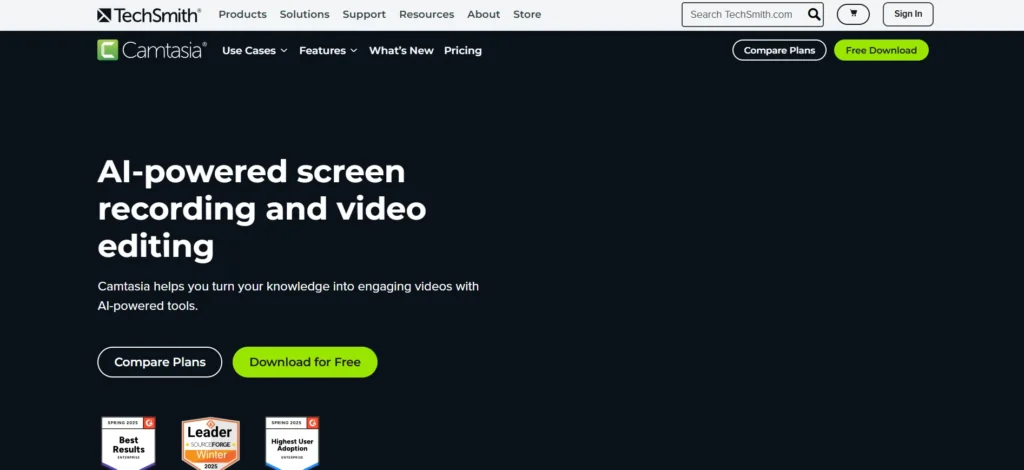
Camtasia is known to be the gold standard for creating professional tutorials, corporate training videos, and webinars. It offers an easy combination of screen capture and professional video editing on a multi-track timeline. The software is enhanced with AI-powered features such as AI scriptwriting, AI voice generation, automatic filler word removal, and text-based video editing, allowing users to edit videos by modifying the transcribed text.
Camtasia also provides a wide range of built-in assets, cursor effects, animations, and transitions, and supports SCORM exports for use on educational platforms. TechSmith has transitioned Camtasia to an annual subscription model to deliver continuous feature updates and improvements.
5. ScreenFlow (Telestream)
Website: https://www.telestream.net/screenflow/overview.htm
Price: $169
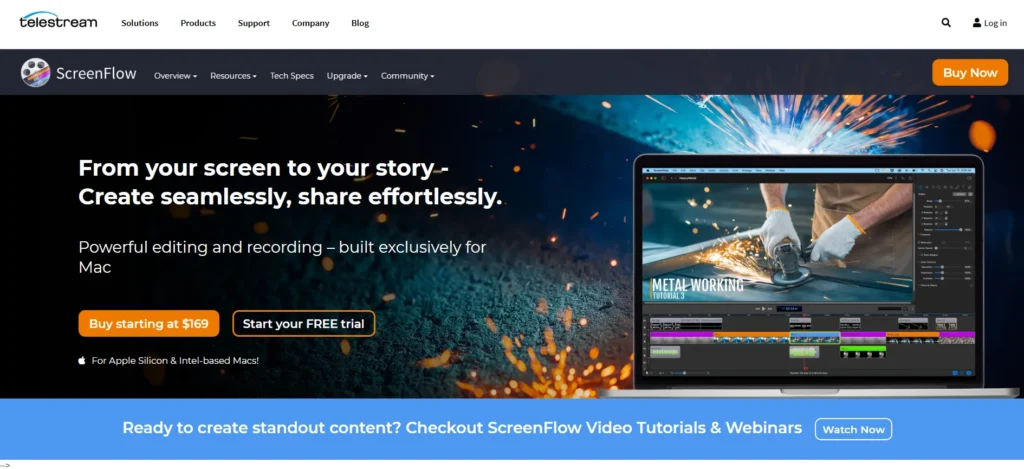
ScreenFlow can be viewed as the most useful screen recording software that is specifically designed to appeal to Mac users. It is an intuitive editing interface with impressive display capture functionality, which has made it popular for producing polished tutorial videos and demonstrations of software.
ScreenFlow 10.5.1 introduced a native system audio recording functionality, which does not require any extra drivers, and the ability to record the audio of any particular application independently with its own audio, making it possible to perform precise post-production mixing. It supports all Apple Silicon hardware and has specific fixes and optimizations to macOS Sequoia and Sonoma. Compared to subscription models by its competitors, ScreenFlow can be purchased once.
Category 3: Quick Communication & Specialized Tools
These are workflow tools with a specific objective, e.g. the fast, asynchronous communication between teams, simple, fast captures and annotation available immediately.
6. Loom (Atlassian)
Website: https://www.loom.com/screen-recorder
Price: $10/month
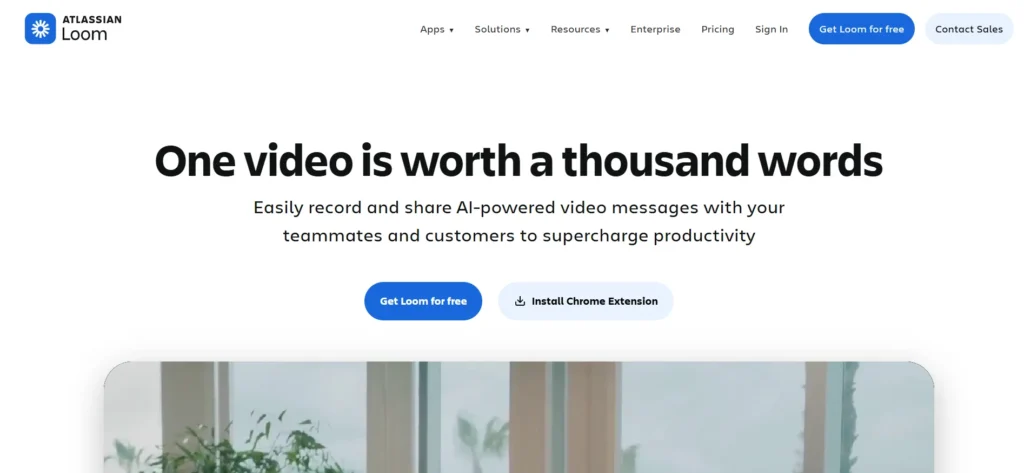
Loom is a prominent platform for fast asynchronous video communication and team collaboration. As a versatile Mac screen and audio recording software, its main value lies in instant video sharing—videos can be recorded immediately, uploaded to the cloud, and shared via a link within seconds.
Popular among remote teams, Loom is often used for step-by-step instructions, design feedback, and onboarding resources. The platform offers a free tier, which is sufficient for many users (limited to 25 videos of up to five minutes each), as well as a Pro tier that includes AI-generated summaries and captions to enhance collaboration.
7. Snagit (TechSmith)
Website: https://www.techsmith.com/store/snagit
Price: $62.99
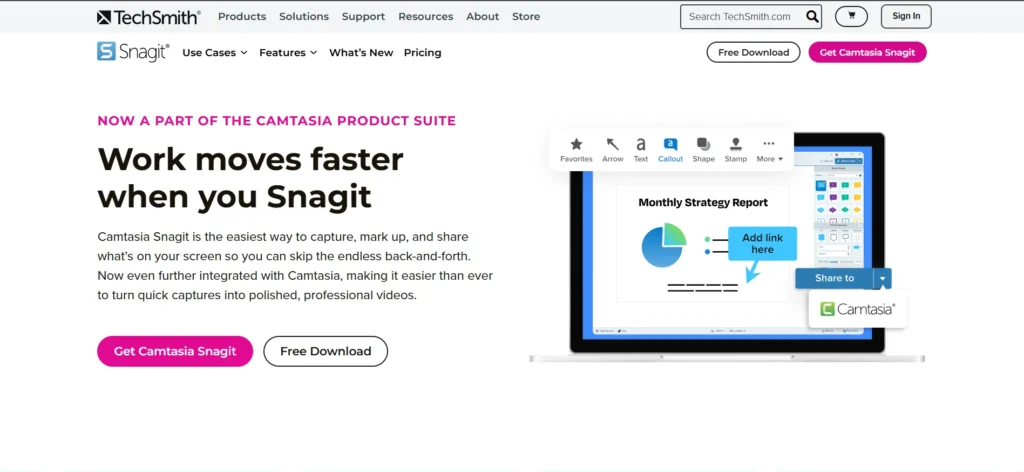
Snagit is a powerful tool that is mainly associated with a vast amount of screenshot and annotation capabilities, though it has the ability to offer as easy as possible screen recording. It is effective at capturing displays in a fast manner and adding notes, callouts and arrows within a short amount of time.
Snagit can fit well into any person who wants to make simple instructional images, GIFs, and very short pieces of video explanations. Its video editing capabilities are simple in the face of Camtasia or ScreenFlow, whereas its image editing is powerful and includes scrolling capture and text extraction.
8. Movavi Screen Recorder

Website: https://www.movavi.com/screen-recorder/
Price: $39.95
Movavi Screen Recorder is a formidable middle-range Mac screen and audio recording software that can also be used on Mac, boasting an uncluttered interface and an easy workflow. It supports both internal and external audio recording simultaneously and provides users with a satisfactory set of post-recording editing features.
Movavi excels at scheduled captures, which are especially handy for live webinars or streaming events when you’re away from your desk. However, more advanced editing may require the standalone Movavi video editing software.
9. Audio Hijack (Rogue Amoeba)
Website: https://rogueamoeba.com/audiohijack/
Price: $69
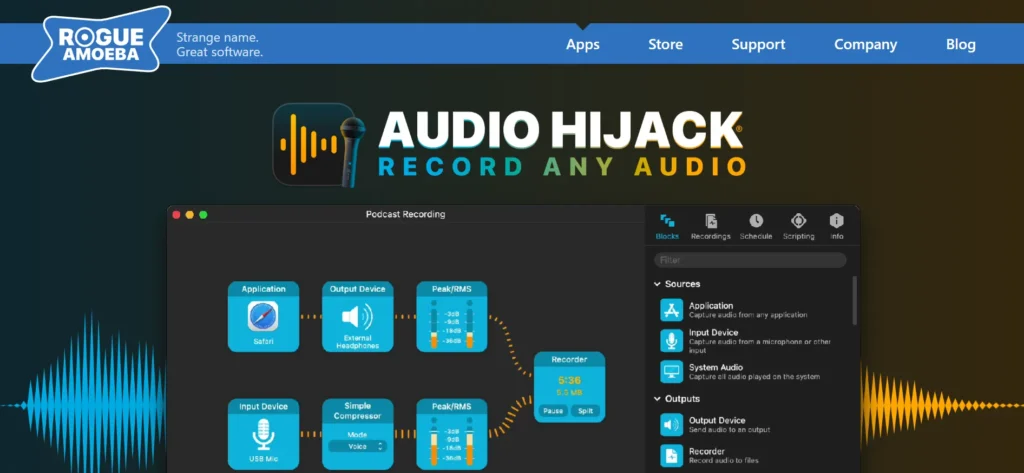
Audio Hijack is a niche Mac app, and its sole purpose is to capture and route to advanced audio, usually audio capture big-brothered with a screen recorder. It gives accurate control over the external and internal audio, whereby a user is able to record audio on the web, any particular application, a microphone, or the overall system audio.
Its block system interface, highly visual and using the drag and drop interface, renders difficult audio routing easy to accomplish, and as a result, it has become very popular among podcasters and professionals requiring high-quality audio capture of multi-tracks.
10. CleanShot X
Website: https://cleanshot.com/
Price: one-time payment – $29
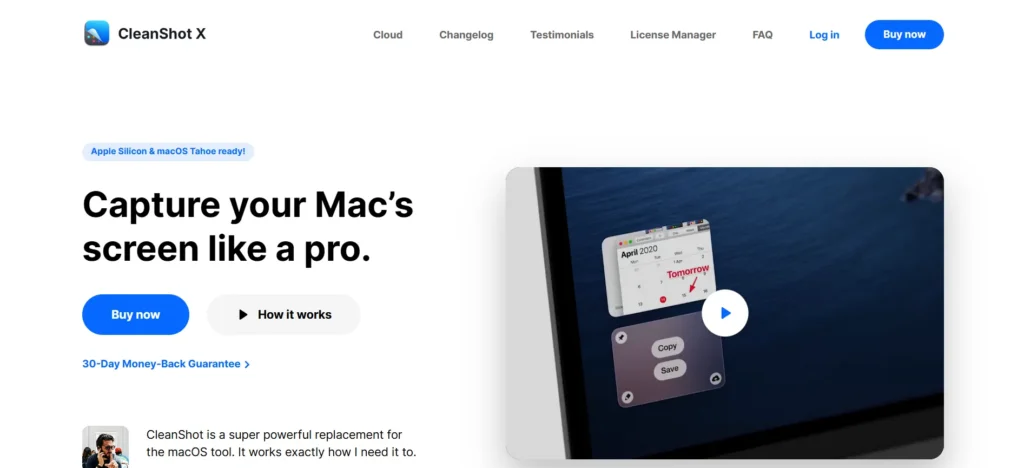
CleanShot X is known as a contemporary and smooth Mac screen and audio recording software for Mac OS, designed to take fast screenshots, record audio and webcam, and create annotations with great precision.
It performs well in offering a clean interface for capturing the screen, audio recordings, and the webcam, along with instant cloud storage solutions through CleanShot Cloud. Minimalists and designers tend to hail its advanced screenshot features, such as the ability to scroll capture, as well as its simple yet effective chore planning tools introduced in 2013.
System Audio Capture: The Mac Challenge
Over the years, it was difficult to record audio accessing the Mac (e.g., a video session, an app) and the microphone as part of the security measures of the macOS.
- The BlackHole Method: This is a generic workaround practice where a third-party virtual audio driver is installed such as BlackHole. This driver is a virtual audio device, where the system sound output of the Mac can be redirected into it as an input to the recording application.
- Native Solutions: This limitation has been bypassed with newer, specialty software, such as ScreenFlow 10.5.1, that runs on macOS. ScreenFlow currently has a built-in system audio recording without additional driver installation and, most importantly, it can record the audio of each of the applications separately to ensure maximum control in the editing timeline.
Comprehensive Feature & Pricing Comparison
| Tool | Best For | Price (Approx.) | Key Features | Editing Capabilities | System Audio Capture |
| 1. ScreenFlow | Mac-Optimized Pro Tutorials | $169 (One-time fee) | Native system audio capture, Apple Silicon optimized, Multi-track recording. | Robust built-in timeline editor, Auto background removal, Color effects, Transitions. | Native (No driver needed on newer macOS). |
| 2. Camtasia | Professional Training & Corporate Video | $249/year (Create Plan) | Requires a virtual driver (BlackHole) or system routing. | Industry-leading multi-track editor, AI filler word removal, Dynamic captioning. | Built-in (Records audio coming through your system). |
| 3. OBS Studio | Live Streaming & Extreme Customization | Free | Customizable scenes/transitions, High-frame-rate 4K output, Supports vast plugins. | None (External editor required). | Requires virtual driver (BlackHole) or system routing. |
| 4. QuickTime Player | Basic, Fast Screen Capture | Free (Built-in) | Pre-installed, Simple screen recording (Shift+Command+5), SDR/HDR format option. | Very basic trimming and sharing. | Requires third-party driver or advanced routing. |
| 5. Loom | Quick Asynchronous Collaboration | Free (Limited) / $10/month (Pro) | Instant cloud sharing, AI-generated captions/summaries, Team workspace, Webcam and mic overlay. | Basic trimming and GIF creation. | Built-in (Records system and mic). |
| 6. Snagit | Screenshots & Quick Annotation | $62.99 (One-time fee) | Scrolling capture, Text extraction, Advanced image editor, Animated GIF maker. | Robust image editing/annotation; Basic video editing. | Built-in for simple screen recordings. |
| 7. Movavi | Scheduled Captures & Simple Recording | $39.95 (One-time fee) | Scheduled captures, Clean UI, Wide variety of export options. | Built-in basic editor; In-depth editing requires a separate app. | Built-in (Records internal and external sources). |
| 8. Audio Hijack | Professional Audio Routing | $69 (Full version) | Precise control over internal/external audio, Block system interface, Multi-track recording. | None (Audio editor required). | Advanced native capture of specific applications or system-wide audio. |
| 9. CleanShot X | Screenshots & Minimalist Workflow | N/A (One-time fee/Subscription) | Clean interface, Cloud hosting (CleanShot Cloud), Scrolling capture, Annotation. | Basic trimming and annotation. | Built-in. |
| 10. macOS Screenshot Toolbar (Built-in) | Best, Fast in-built Screen Capture | Free (in-built) | Pre-installed, Simple screen recording (Shift+Command+5), SDR/HDR format option. | Advanced text-based editor. | Built-in (Produces podcast-quality results). |
Conclusion
The system of Mac screen and audio recording software offers a wide range of solutions tailored to different needs. For all-in-one professional production, ScreenFlow is ideal for Mac users due to its seamless integration, native system audio capture, and powerful editing features available with a one-time payment, while Camtasia is better suited for corporate training that demands advanced AI features and SCORM export.
For speed and collaboration, Loom excels at instant, asynchronous video sharing. Power users looking for a free option can rely on OBS Studio for advanced mixing, streaming, and customization, whereas Audio Hijack is best for specialized multi-track internal and external audio routing. While macOS’s built-in tools are quick and efficient for basic captures, producing high-quality professional or educational content typically requires investing in a more advanced solution.
FAQs
Q1. Does the internal (built-in) QuickTime Player have access to record system audio?
No, not natively on its own. QuickTime Player has default restrictions on its audio recording capabilities that only allow external microphone audio to be recorded because of the macOS security architecture. To record audio on the computer (e.g., sound out of an application or a browser) you need to install a third-party virtual audio driver (including BlackHole) and set up a Multi-Output Device in the Mac Audio MIDI Setup.
Q2. Is OBS Studio a free solution for free on Mac?
Yes, for advanced users. OBS Studio is preferred in situations where you want to have a high level of control, customization (developing several scenes, overlays), and have the possibility of streaming/recording in high quality (4K). It is, however, steep in the learning curve, but it must be configured with external audio. In case of easier tasks, which are free, the macOS Screenshot Toolbar that is inbuilt is easy to use.
Q3. Which one should be preferred- H.264 or Apple ProRes?
It is a matter of where you are going:
- H.264/HEVC: This is used when making a final delivery (YouTube, Vimeo or a web page). It offers quality and small files.
- Apple ProRes: This is only important when you intend to carry out a lot of post-processing editing (color grading, multi-track effects, stabilizer) in a professional editor such as Final Cut Pro. The ProRes files are huge yet are better when it comes to excessive editing.
Q4. Is Apple Silicon (M-series) a good screen recorder assisting chip?
Yes, significantly. Certain hardware media engines supported by Apple Silicon chips are highly efficient and enable encoding at a fraction of the time required by a CPU core, especially when it comes to such efficient codecs as HEVC (H.265). This enables one to record 4K in less resource-consuming ways, though when carrying out complex tasks.
Q5. What is ScreenFlow most useful with in comparison to Camtasia when using it on a Mac?
The primary benefit of ScreenFlow is that it is exclusively optimized to work with macOS and costs less to purchase at once (in comparison to the annual subscription of Camtasia). The native system audio recording with no additional drivers also appeared in ScreenFlow 10 and provided an excellent integration that Camtasia cannot always attain on Mac.